Video subtitles, SRT export and YouTube
After you transcribe video, Tamleli Pro lets you watch synchronized captions on top of the recording, switch to fullscreen with captions, keep a side transcript on desktop for editing, and download an SRT file for external players—or to prepare subtitles for YouTube.
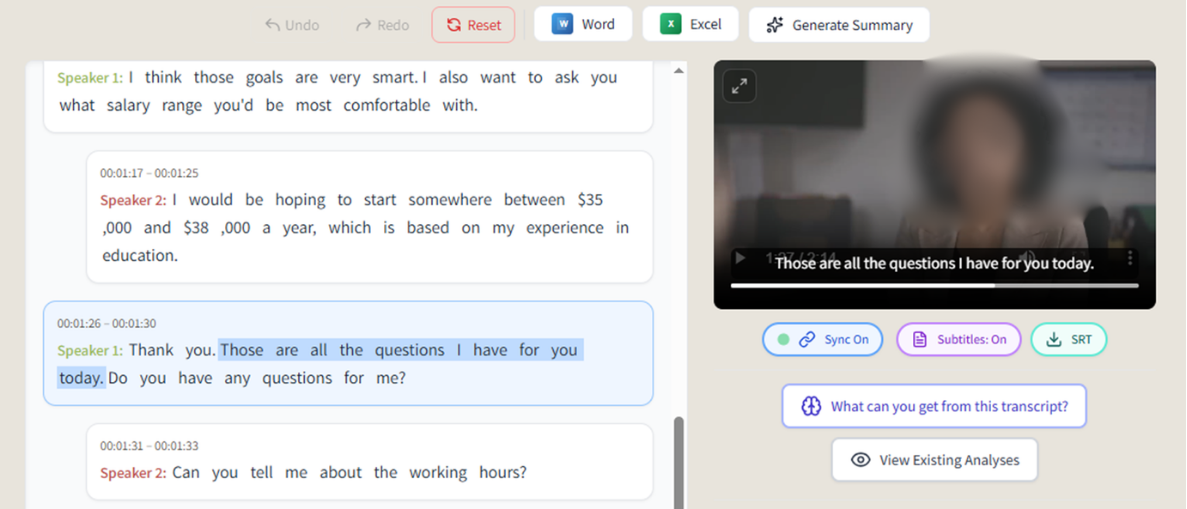
One workflow from transcript edits to captions and export.
Player capabilities: overlay, fullscreen and SRT
- On-video captions — Timed text over the video; toggle on or off without changing the underlying media.
- Fullscreen & desktop layout — Fullscreen viewing with captions; on desktop you can pair the player with the transcript panel.
- SRT download — Export timed cues from your edited segments for tooling that accepts SubRip (.srt) style captions, including typical YouTube import flows.
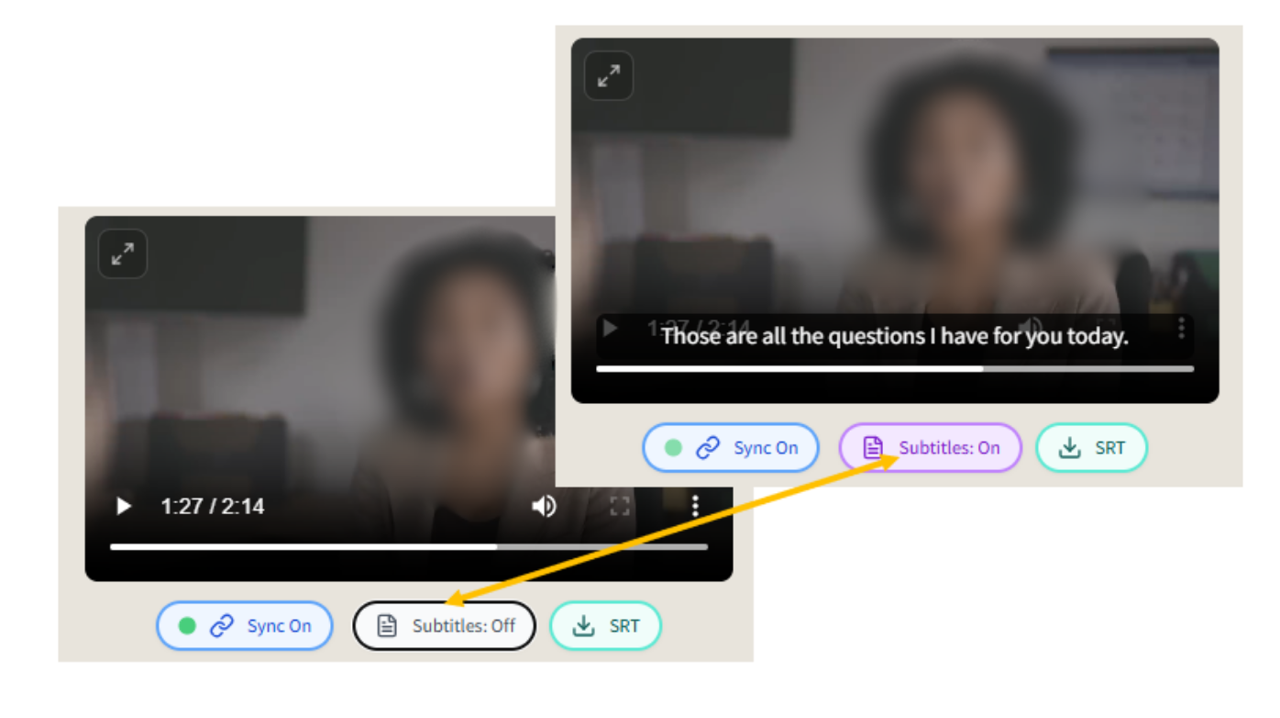
The captions toggle shows or hides text over the video—without changing the original file.
YouTube: high-level steps for SRT uploads
The YouTube Studio interface evolves; these steps describe the usual pattern:
- Upload the video to your channel when it is not already published.
- Open YouTube Studio and select the video.
- In the Subtitles (or CC) section, add a language track and upload or import your subtitle file.
- Save, publish as needed, and review playback with captions enabled.
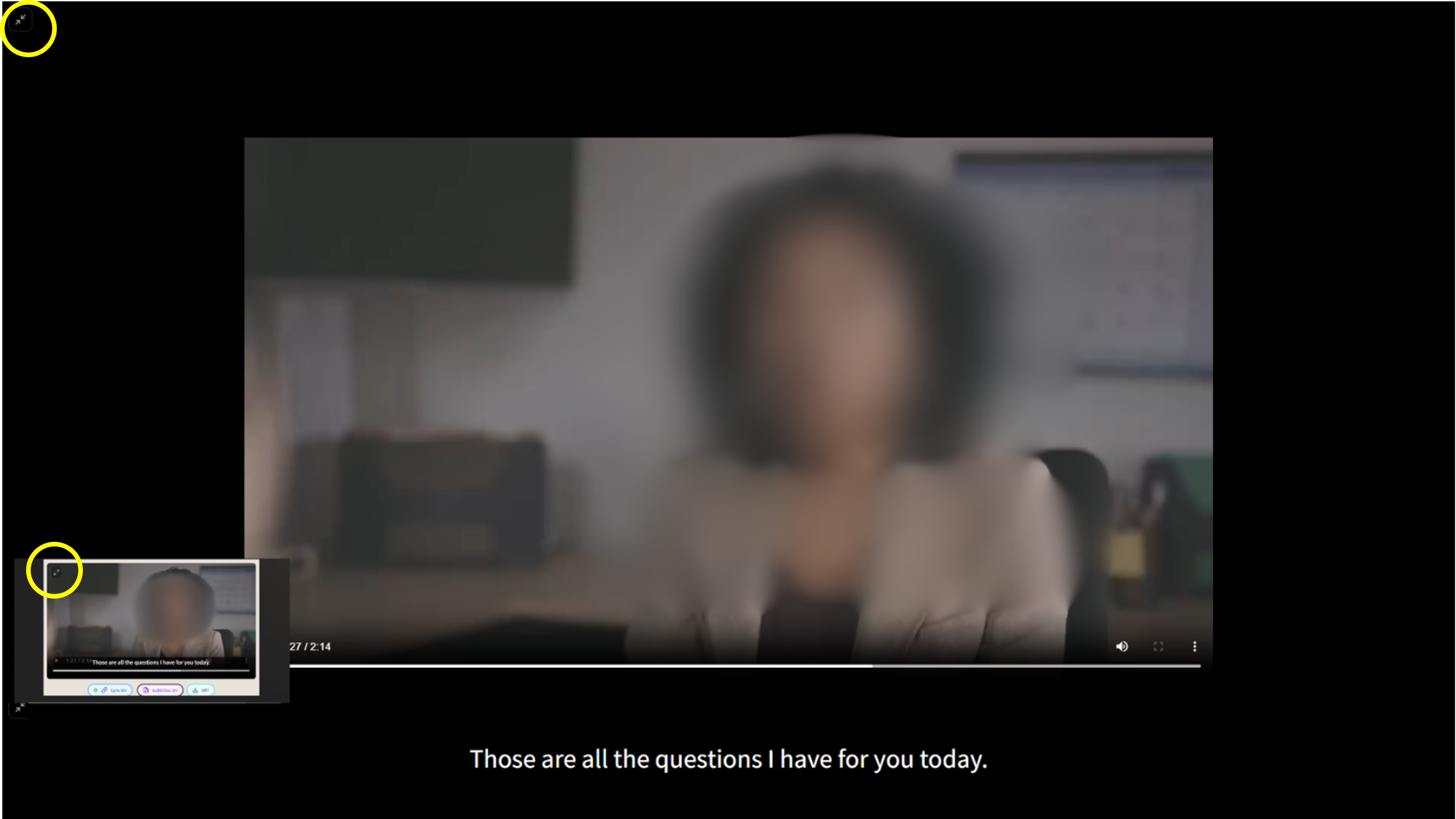
From the player view (with the transcript beside the video) to fullscreen.
Privacy and sensitive material
For clinical, HR or journalistic contexts, consider visibility settings (private / unlisted), organizational policy, participant consent and whether subtitle text should ever be uploaded to a public platform.
Start in Tamleli Pro
Upload media, refine the transcript, toggle captions and export SRT when you are ready.
Open Tamleli Pro